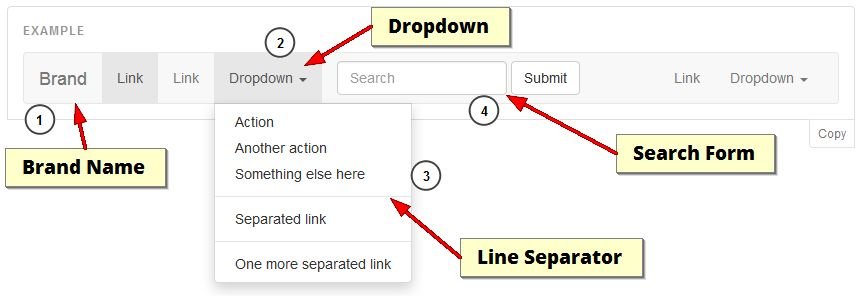
This is a Bootstrap navbar example:
Add or edit menu
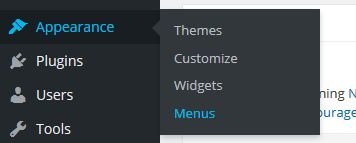
Click on appearance > menu
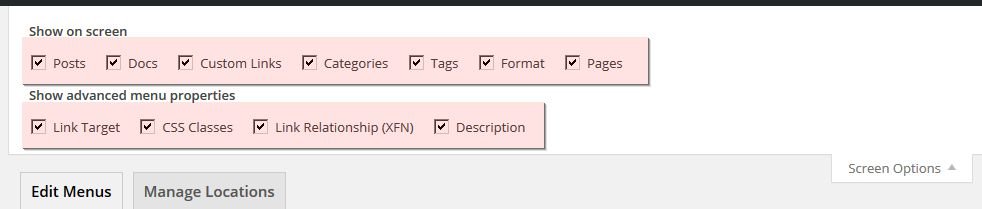
Click on screen option (top right of the page) and put a check mark in each checkbox
Now you can create a new menu or edit an existing one
Add dropdown item (n°2)
For adding dropdown menu simply add new custom link item with # as url and a item name
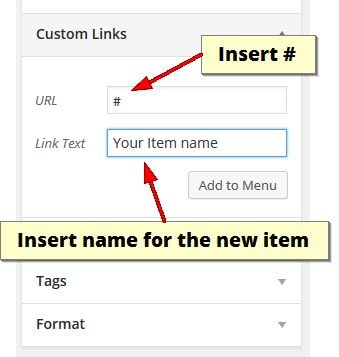
Click "Add to Menu" and add new child items (from any kind of link)
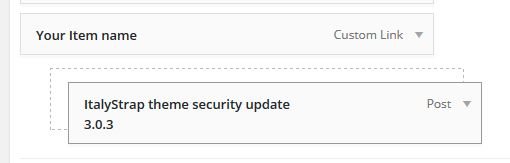
Add any items as you wish
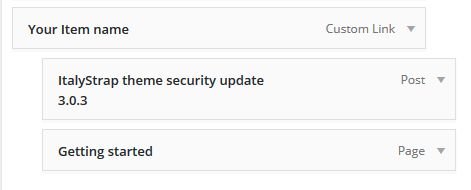
Add a line separator (divider) between items (n°3)
You can add a separator for item in dropdown menu
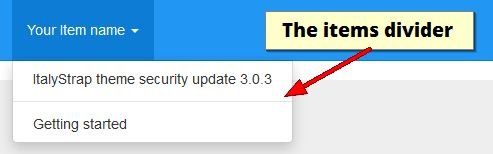
Simply add new custom link (Link Text “divider” is optional)
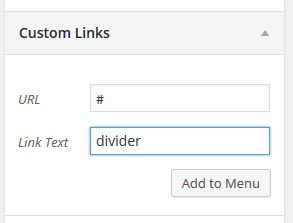
Put new divider’s item between two item (or wherever you want)
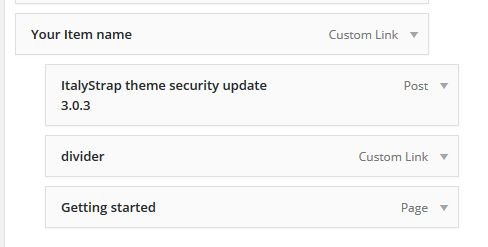
And add the divider CSS class in CSS Classes (optional)
![How-to-use-and-customizing-ItalyStrap-menu-on-WordPress-11]() Add a dropdown header in dropdown menu
Add a dropdown header in dropdown menu
 Add a dropdown header in dropdown menu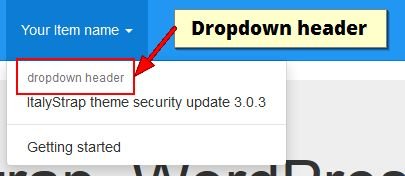
Add dropdown-header CSS class in CSS Classes (optional) of the item
![How-to-use-and-customizing-ItalyStrap-menu-on-WordPress-16]() Add a disabled item to menu
Add a disabled item to menu
 Add a disabled item to menu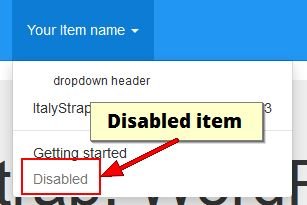
Add disabled CSS class in CSS Classes (optional) of the item
![How-to-use-and-customizing-ItalyStrap-menu-on-WordPress-18]() Add an icon to the left of an item
Add an icon to the left of an item
 Add an icon to the left of an item
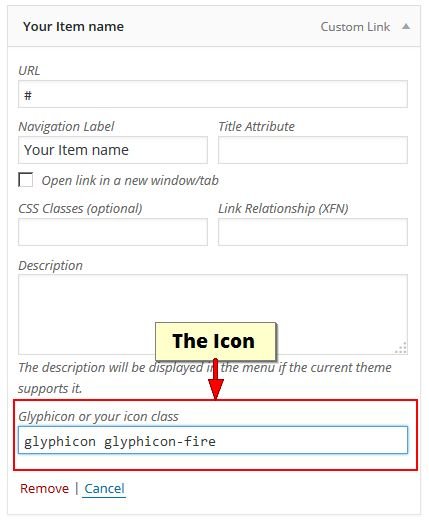
For adding an icon to the left of item add a name of Glyphicon or your icon class in Glyphicon or yours icon class of the item
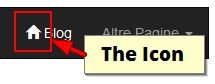
And then the icon will be displayed in the navbar
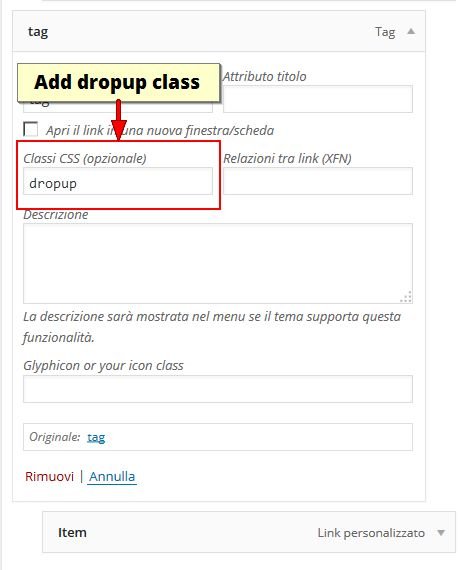
Add a dropup menu
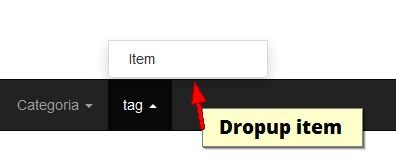
Add a dropup class to the parent of the item